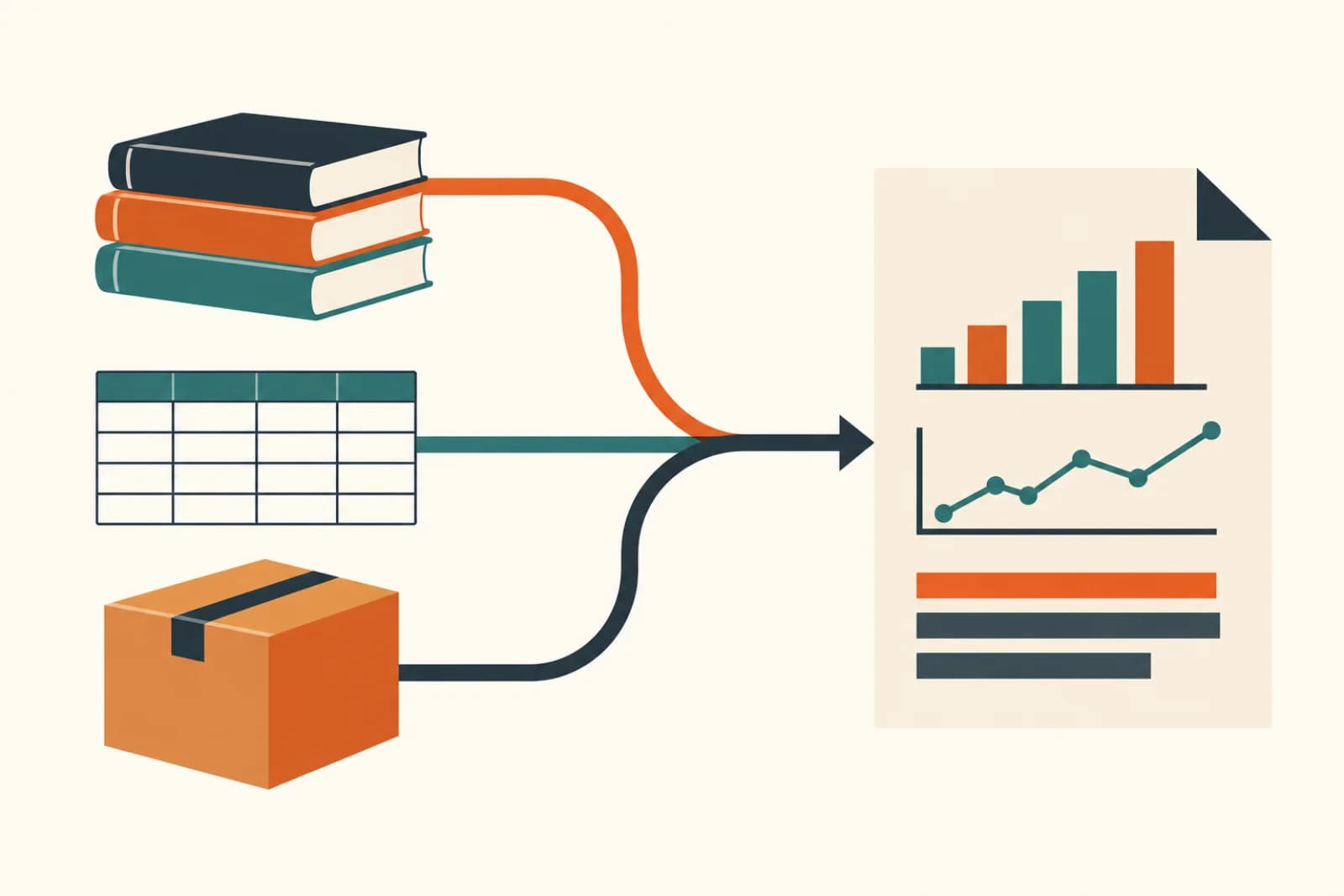
Short answer: every app someone at your company approved with "Sign in with Google" or "Sign in with Microsoft" may still hold a key to your email, files or calendar, and nobody is checking those keys. Attackers have noticed. Microsoft reported on 21 October 2026 that a group used a trusted backup app's access, plus an AI agent framework, to try its way into more than 2,250 company tenants. A 30-minute review of connected apps closes most of that gap.
What Microsoft reported
According to Microsoft's security blog, a China-state-aligned group it calls Storm-0940 gained control of the identities of several ConnectWise cloud applications, a backup service that companies had approved in their Microsoft 365 setup. Because those apps were already trusted inside each customer's tenant, the attackers could sign in as the app. No employee had to click anything.
The group used ARTEX, an open-source penetration testing framework that can run on any AI model and carry an attack from scouting to data theft with little human input. Microsoft says it tried sign-ins to more than 2,250 tenants at 2,900 attempts a minute. Most of it failed. In some companies, though, the activity went on to changing app credentials, groups and admin roles, and several attacks reached privileged cloud access in under three hours.
Microsoft is clear that this wasn't a flaw in its own systems. The weak point was an app that customers had trusted, with broad access, for a long time.
This has happened before, with a sales tool
In August 2025, Google's Threat Intelligence Group reported that a group it tracks as UNC6395 stole access tokens tied to Salesloft's Drift app and used them to export large volumes of data from numerous companies' Salesforce accounts. Tokens for Drift's email integration were also used to read email in a very small number of Google Workspace accounts that had been connected to it. Google's advice afterwards included setting connected apps to the minimum access they need.
The pattern in both cases: a business tool that people approved once, for a good reason, became the way in.
Why AI tools make this more urgent
Look at how teams pick up AI tools now. A meeting note-taker wants your calendar. An email assistant wants to read and draft in your inbox. A "chat with your documents" tool wants Google Drive or OneDrive. Each one starts with a sign-in screen and a list of permissions, and most people click Allow without reading it.
Each approval is reasonable on its own. Added up over a year, they leave a long list of apps holding access nobody remembers granting, some from trials that ended months ago. And as the Microsoft report shows, attackers now use AI agents to try those doors at a speed no person could.
The defaults don't help. Google's admin help page lists "Allow users to access any third-party apps" as the default setting. Microsoft's consent documentation says that by default all users can consent to apps for permissions that don't need an admin, such as access to their own mailbox.
The 30-minute check
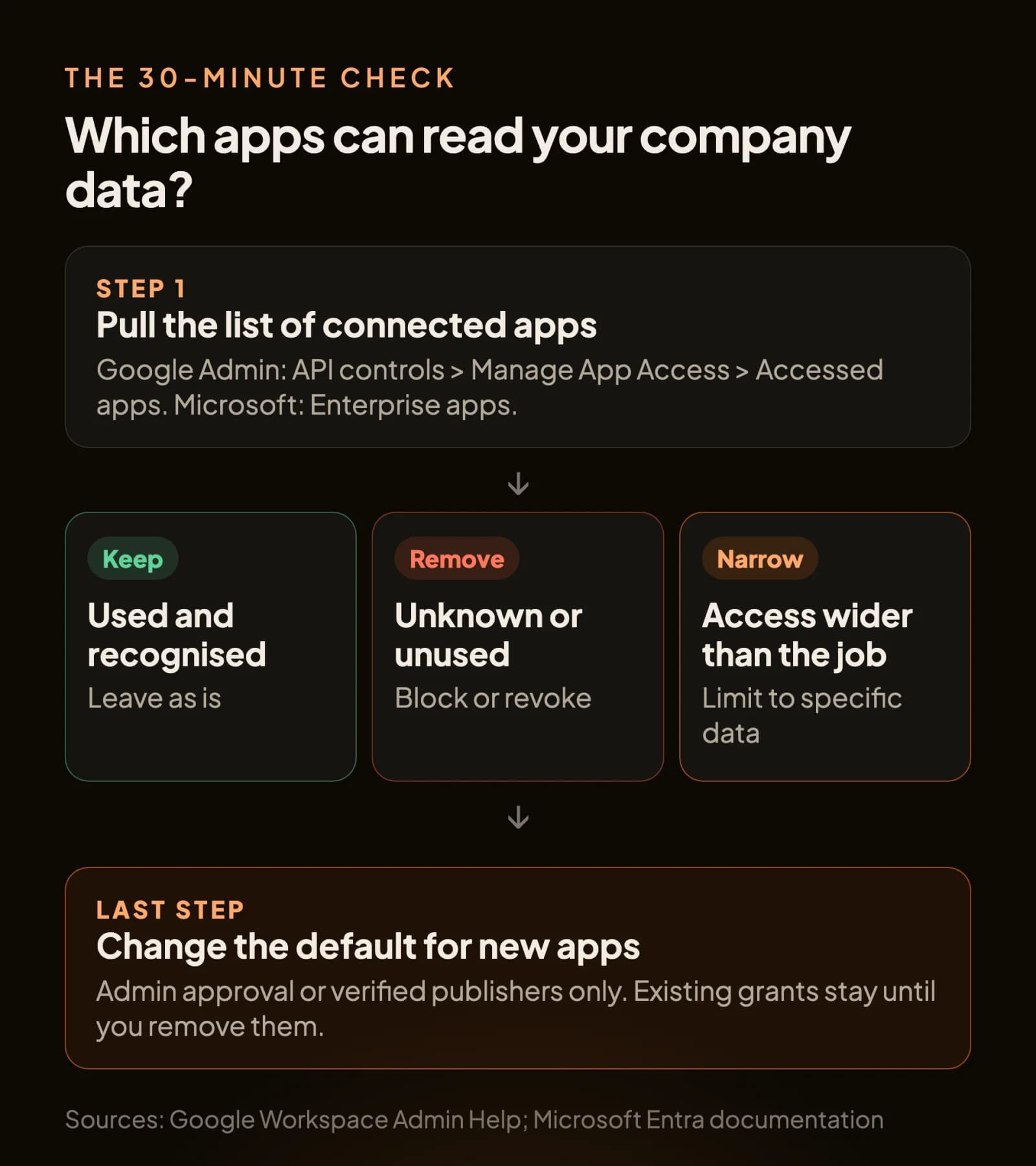
1. Pull the list. In Google Workspace, an admin goes to Security > Access and data control > API controls > Manage App Access and opens Accessed apps: every app that has reached company data. In Microsoft 365, the Entra admin center shows these under Enterprise apps. On Zoho, each user can see theirs under Sessions > Connected Apps at accounts.zoho.com.
2. Sort it into three piles. Apps you use and recognise. Apps you don't recognise or stopped using. Apps with access far wider than their job, such as a note-taker that can read all of Drive.
3. Remove the second pile. Block or revoke anything unknown or unused. If it turns out someone needed it, they'll ask, and you'll learn something.
4. Narrow the third pile. Google lets you set an app to Specific Google data, so it can only request the scopes you choose. Where a tool offers a smaller permission option, use it.
5. Change the default for new apps. In Google, move "Unconfigured third-party apps" away from allowing everything, and turn on "Allow users to request access to unconfigured third-party apps" so people can still ask. In Microsoft, the documentation recommends allowing user consent only for apps from verified publishers, with an admin approval workflow for the rest. Note that changing this setting doesn't touch existing grants, which is why steps 1 to 4 come first.
Make it a quarterly habit
Put the review on the calendar every quarter, and add one line to your offboarding checklist: when someone leaves, check what they connected. Ask staff to tell you before they connect a new AI tool to work accounts. Most will, if the request takes a minute and gets a quick yes.
None of this needs a security team. It needs one admin, an afternoon each quarter, and the willingness to click Remove. If you're also setting up AI agents that work inside these systems, our earlier post on giving each agent its own login covers the other half of the job.
Arthat AI
Working on something similar at your company?
Arthat AI builds these automations for Indian businesses every week. If you want to talk through whether this fits your situation, we'll give you a straight answer — even if the answer is "don't build it."